Microsoft 365 for nonprofits still gives a church free email, Teams and Office web apps. It just doesn’t give you the good version for free anymore. On July 1, 2025, Microsoft discontinued the Microsoft 365 Business Premium grant, and those free licenses expired at each organization’s next renewal (Microsoft Learn, “Updates,” July 1, 2025).
So when a church administrator asks me, “Will Microsoft still take our church, and what do we get?” the answer is short. Yes, Microsoft accepts US churches with recognized 501(c)(3) status. You get up to 300 free Business Basic licenses for paid staff and unpaid executive leaders. Desktop Office and Premium security now cost money, but not much.
I’m the Executive Pastor at New Hope Hawaii Kai and I’ve run REACHRIGHT, a church-only marketing agency, since 2016. Plenty of church offices still follow old blog posts promising free Business Premium. This guide was checked against Microsoft’s own pages on November 5, 2026.
Before you start: Microsoft’s validator has to confirm your church holds recognized charitable status. If your church has never received an IRS determination letter and isn’t listed under a denomination’s group exemption, read how to prove your church is a nonprofit first. It covers the three paths and saves you a rejected application.
How do I apply to Microsoft for Nonprofits?
You apply to Microsoft for Nonprofits at nonprofit.microsoft.com, Microsoft’s Nonprofit Hub, by entering your church’s contact details, legal information and EIN, then waiting up to 3 business days for a validation partner to approve you (Microsoft Learn, “Registration and Validation,” updated December 2025). Approval unlocks the grant and discounts. You then activate the Business Basic grant in the Nonprofit Hub and assign licenses in the Microsoft 365 admin center. The form takes “about 10 minutes,” per Microsoft. The prep before you click Apply matters more.
Step 1: Confirm your church qualifies
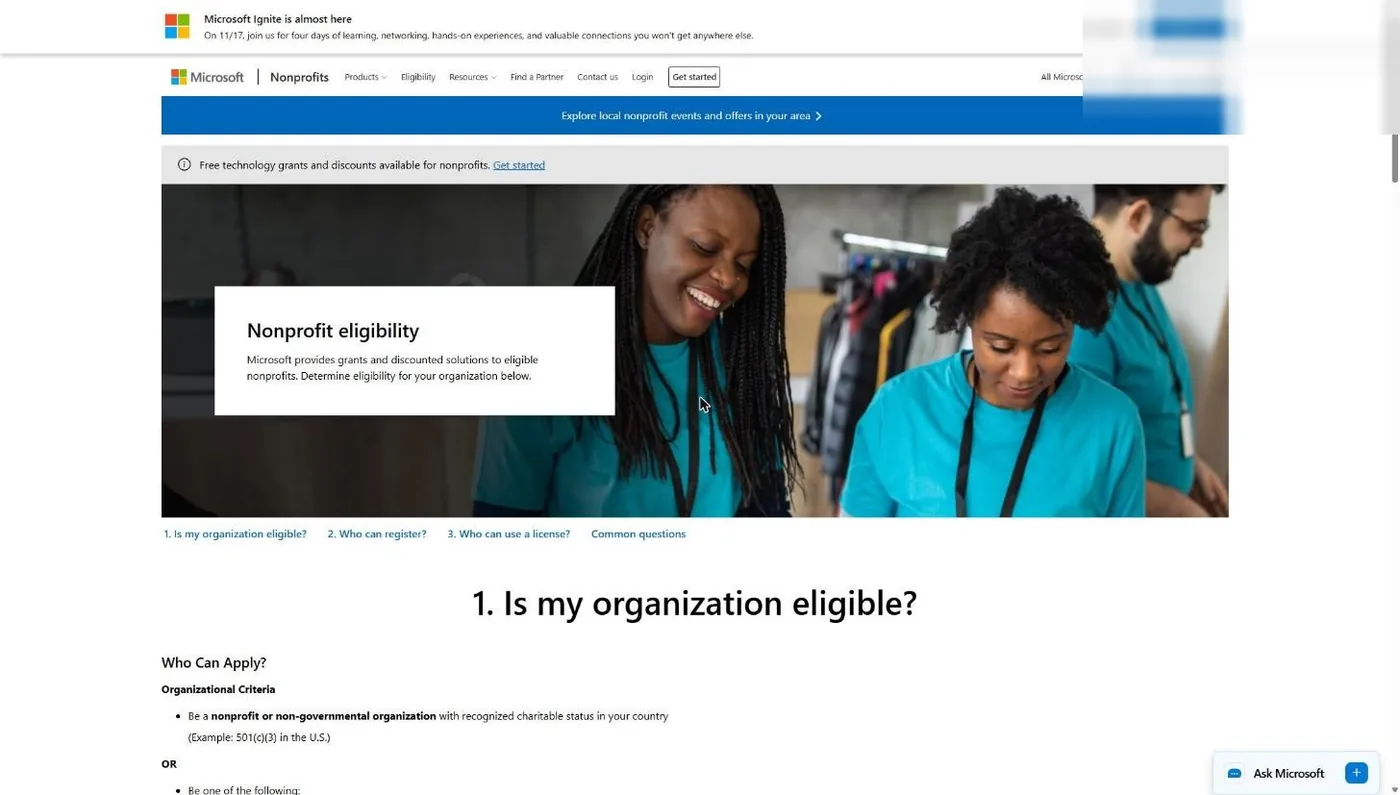
Open Microsoft’s eligibility page at microsoft.com/en-us/nonprofits/eligibility. The first criterion is the one that matters for a church: be a nonprofit “with recognized charitable status in your country,” with 501(c)(3) given as the US example.
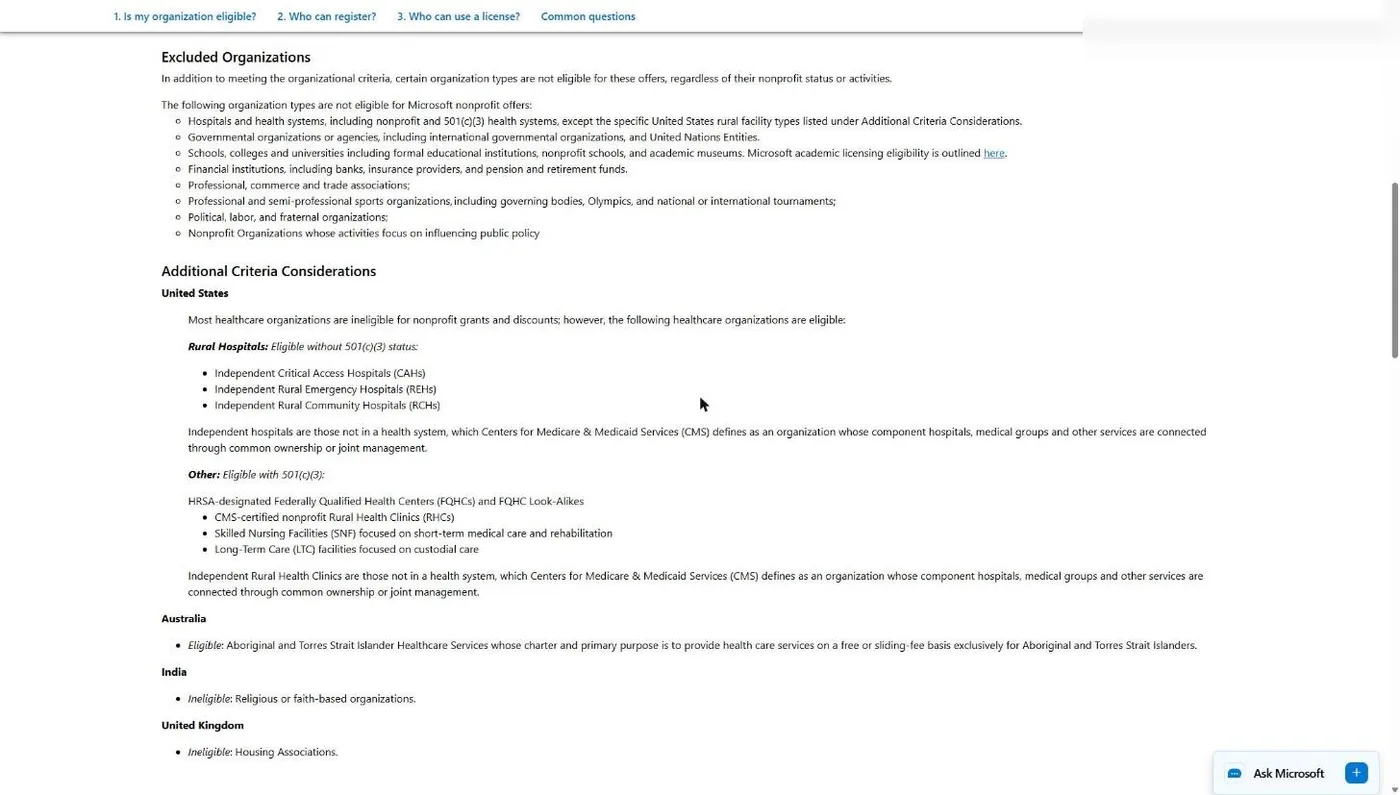
Scroll to Excluded Organizations. The list that applies everywhere names hospitals, government agencies, schools, financial institutions, trade associations, sports organizations, political, labor and fraternal groups, and nonprofits focused on influencing public policy. Churches aren’t on it. Further down, under “Additional Criteria Considerations,” Microsoft adds country-specific notes. The India entry reads “Ineligible: Religious or faith-based organizations.” That line covers organizations in India only.
Common snag: a church that has never been recognized by the IRS. Microsoft’s validator checks your legal identifier against official records, so “automatically tax-exempt” isn’t enough on its own.
Step 2: Decide who in your church gets which license
Microsoft splits licenses into two kinds, and the split decides your bill. Per Microsoft’s eligibility page (verified November 5, 2026):
- Paid employees can use granted (free) and discounted licenses.
- Unpaid executive staff, defined as unpaid staff who act as senior leadership, can use granted and discounted licenses. Think elders or board officers.
- Volunteers and temporary staff can use discounted licenses only.
- Members, donors and beneficiaries get nothing. Microsoft’s page names “members of a church” as not eligible for nonprofit offers.
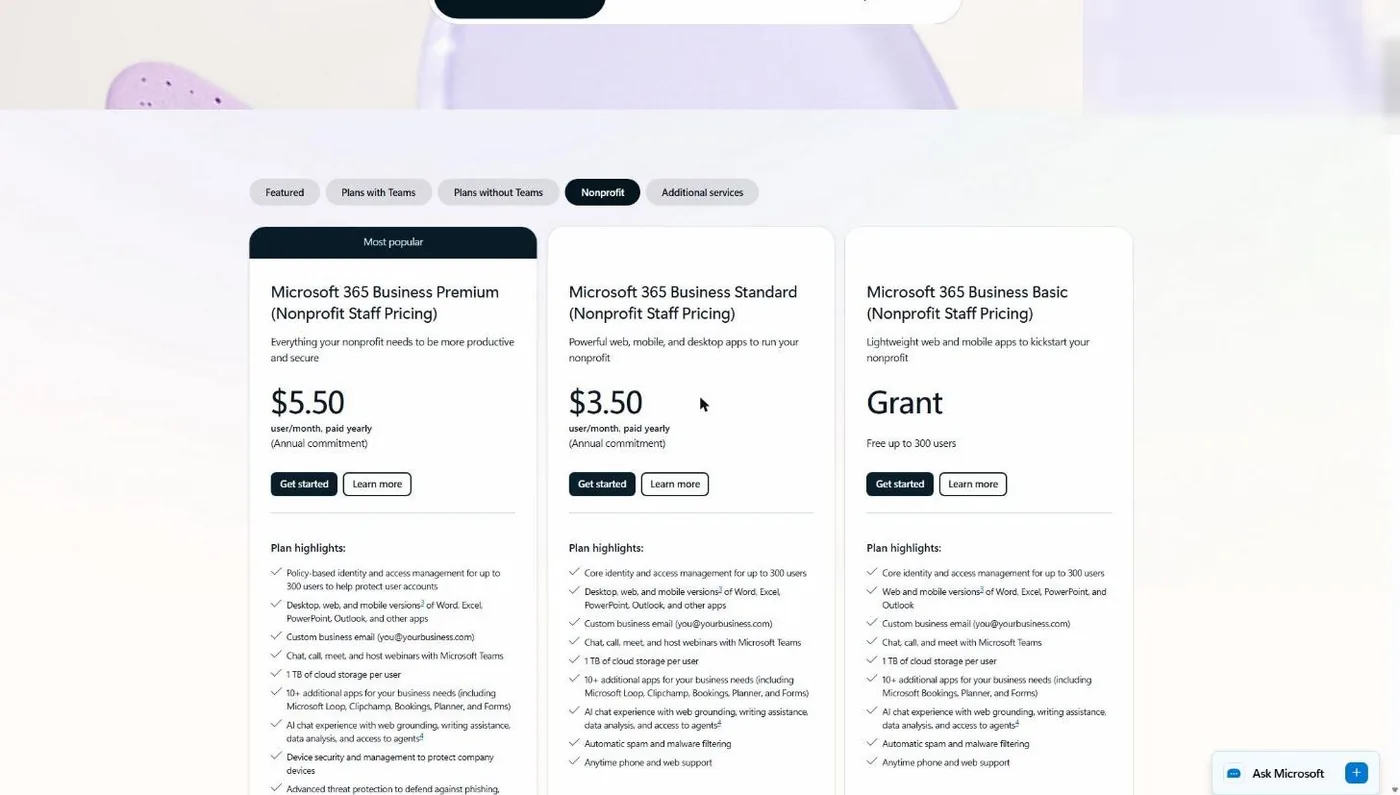
Make a list: paid staff and elders go on the free Business Basic grant. Anyone who needs desktop Word and Excel moves to Business Standard at $3.50. Your bookkeeper and anyone touching giving records are good candidates for Business Premium at $5.50, which adds device management and advanced threat protection, per Microsoft’s pricing cards.
Common snag: setting up a free account for the worship leader who volunteers. Volunteers can’t hold grant licenses. Give them a discounted license or a shared mailbox.
Step 3: Gather your details and click Apply
Go to nonprofit.microsoft.com/en-us/getting-started. Microsoft asks you to have your legal identifier (your EIN), physical address and contact info ready, and says you don’t have to choose products until after approval.
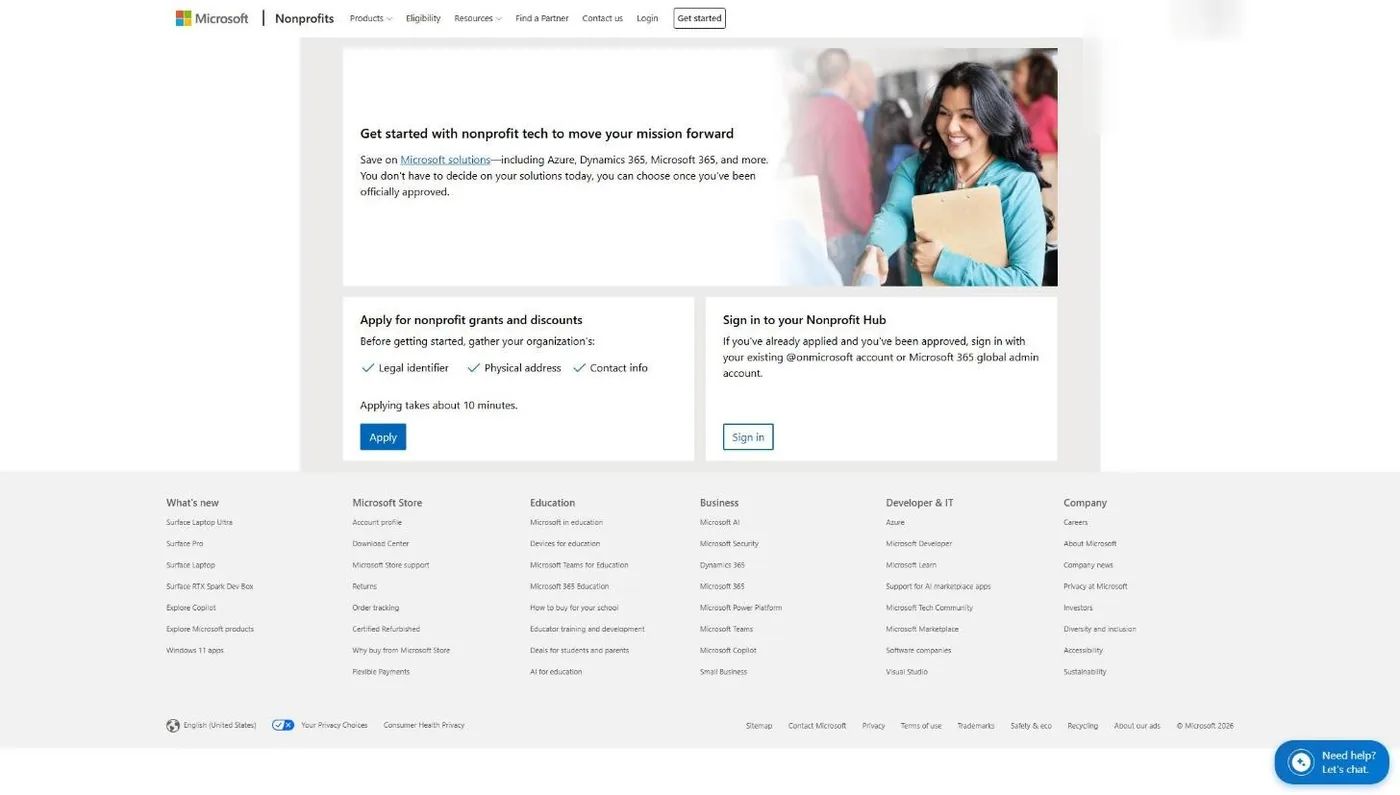
Two buttons sit on this page. Apply creates a new Microsoft 365 tenant for your church. Sign in is for a church that already runs Microsoft 365: sign in with your global admin account, and Microsoft registers your existing tenant while keeping your users, licenses and email in place (Microsoft Learn, December 2025).
Common snag: your IT vendor offers to do it for you. Microsoft says a third-party IT provider “may not complete registration on its behalf.” The person applying must be an employee or strategic volunteer of the church. Both buttons require a Microsoft sign-in, so Steps 4 through 8 follow Microsoft’s own help documentation.
Step 4: Enter contact details and verify your email
Enter your full name, role, email address and country. Choosing the United States makes an EIN field appear later. Agree to the terms, then type the 6-digit code Microsoft emails you (Microsoft Learn, “Registration and Validation”).
Common snag: no code arrives. Check junk mail, then request a new one. The email you use here receives every status update, so use a church address someone will still read in a year.
Step 5: Enter your church’s legal information
Microsoft asks for legal name, website, mailing address, phone number and legal identifier. Microsoft’s guidance is blunt: details “should match your organization’s legal records and public profile.”
Enter your church’s name exactly as it appears on your IRS paperwork. Use your real website domain, not a Facebook page, because Microsoft says a public-facing domain supports faster validation. Use a landline or cell number: Microsoft rejects “a VoIP or call-forwarding service.”
Common snag: the phone. A lot of church offices run on VoIP phone systems. Use the pastor’s or administrator’s cell instead.
Step 6: Create the admin account and submit
Create your Microsoft 365 username (for example admin@yourchurch.onmicrosoft.com) and a strong password. Don’t tie this account to one person’s personal email. Complete the compliance attestation, which confirms you’ll use the offers only for eligible purposes. Then validation starts.
You’ll get two emails: “Eligibility Process Started,” then “Eligibility Request in Review.” Microsoft says validation typically takes up to 3 business days, longer if the partner needs more information (Microsoft Learn, eligibility page, updated May 2026).
Step 7: Activate the Business Basic grant and assign licenses
Once approved, offers appear in the Nonprofit Hub. Microsoft’s steps (Microsoft Learn, “Access Microsoft 365 Offers,” December 2025):
- Sign in to the Nonprofit Hub and open the M365 page.
- Choose the grant and click Buy Now.
- Activate the offer in the Microsoft 365 admin center.
- Create users and assign licenses.
Common snag: you see a subscription called “Nonprofit Portal (Nonprofit Staff Pricing) Trial” and think you’re done. Microsoft says that subscription “does not include usable Microsoft services and is not a grant.” You still have to activate the actual offer.
Step 8: Stay compliant so you keep the grant
Microsoft requires grantees to “regularly complete an attestation” and to keep at least 85% active usage of granted licenses. When a staff member leaves, remove their license. A church that hands out 40 free licenses and uses 20 is exactly what Microsoft calls program abuse.
What if Microsoft rejects my church?
Microsoft rejects or delays church applications for a short list of reasons, and most are data mismatches you can fix in an afternoon. Microsoft Learn’s eligibility page lists the common problems: mismatched legal identifiers, inaccurate organization names, unverified phone or email, duplicate applications from multiple tenants, and ineligible activity such as lobbying. Microsoft also says selections are made at its “sole discretion” and are “not subject to external review,” so clean data on the first try beats an appeal.
| Rejection or delay | What it usually means for a church | The fix |
|---|---|---|
| Mismatched legal identifier | You entered the denomination's EIN, or an EIN with no 501(c)(3) record behind it | Use your church's own EIN. If the validator asks for documents, send your IRS determination letter or your denomination's group exemption letter |
| Inaccurate organization name | "Grace Church" on the form, "Grace Community Church of Austin Inc" on IRS records | Type the legal name exactly as your IRS paperwork shows it |
| Unverified phone | The office line is VoIP or forwards to a cell | Use a direct cell or landline number |
| "Invalid domain" | You listed a Facebook page or a lapsed domain | Enter your working church website domain |
| Duplicate application | A former staffer set up a tenant years ago and someone applied again from a new one | Microsoft allows one grant tenant per organization. Find the old admin login and register that tenant |
| Registrant not eligible | Your IT vendor filled out the form | Have a staff member or strategic volunteer apply |
If you’ve fixed the data and still get declined, file a ticket through Microsoft’s Contact Us form at nonprofit.microsoft.com/contactus. Group exemption churches should know Microsoft’s public pages don’t spell out how its validator handles group rulings, so have the letter and proof of affiliation ready before you apply. Our foundation guide walks through those documents, and our 501(c)(3) church guide covers whether to file for your own letter.
What happened to the free Microsoft 365 Business Premium grant?
Microsoft discontinued the Microsoft 365 Business Premium grant and the Office 365 E1 grant effective July 1, 2025, with existing grant licenses expiring at each organization’s next renewal date (Microsoft Learn, “Updates”). The old grant gave eligible nonprofits 10 free Business Premium licenses (The Register, May 2025). Microsoft replaced it with “up to 300 granted licenses of Microsoft 365 Business Basic” and “discounts of up to 75%” on other plans.
| Plan | Before July 1, 2025 | As of November 2026 |
|---|---|---|
| Business Premium | Up to 10 licenses free (grant) | $5.50 per user per month, paid yearly |
| Office 365 E1 | Grant | Grant discontinued; E1 still sold at nonprofit pricing |
| Business Standard | Discounted | $3.50 per user per month, paid yearly |
| Business Basic | Free grant | Free grant, up to 300 users |
Sources: Microsoft Learn "Updates" (July 1, 2025 entry) and Microsoft's nonprofit plans and pricing page, verified November 5, 2026. Pre-2025 license count per The Register, May 2025.
If your church still holds old Premium grant licenses, move users to Business Basic or a paid nonprofit plan before renewal. Microsoft recommends it “to avoid service disruption or data loss,” and the move is manual in the admin center. Nobody does it for you.
One housekeeping note for anyone following an older guide: Microsoft’s old /nonprofits/offers page now returns a 404. The live offers list is at microsoft.com/en-us/nonprofits/offers-for-nonprofits.
Do churches qualify for Microsoft for Nonprofits?
Yes. US churches qualify for Microsoft for Nonprofits when they hold recognized 501(c)(3) status, and Microsoft’s current eligibility page contains no religious exclusion for US organizations (verified November 5, 2026). The only religious line on the page is the India note. Where the page does mention churches, it’s to say church members can’t use the organization’s licenses.
The bigger change for churches came in late 2025. On October 10, 2025, Microsoft signed an agreement with shareholders represented by Alliance Defending Freedom, made public November 14, 2025 (Bloomberg News and Catholic News Agency, November 2025). Microsoft said it will not discriminate against religious nonprofits seeking its discount, and nonprofits no longer have to affirm the nondiscrimination attestation that had kept some faith-based groups out. In a November 19 statement to Catholic News Agency, Microsoft said: “We don’t think it’s desirable to pick and choose among these organizations based on ideological orientation.”
For a church with biblical convictions about marriage and hiring, that removes a pledge you’d have struggled to sign in good conscience. The attestation you’ll still see during registration covers using offers for eligible purposes and agreeing to terms of use (Microsoft Learn, December 2025). Read it, but it isn’t the old pledge.
My take
A US church with 501(c)(3) recognition can get Microsoft 365 Business Basic free for up to 300 paid staff and leaders in 2026, and the only seats worth paying for are the few that need desktop Office or Business Premium's security.
Microsoft 365 or Google Workspace for a church?
For most churches, Google Workspace for Nonprofits gives more for free, and Microsoft 365 wins when your staff already lives in desktop Excel and Outlook. Both programs accept churches, and both charge $3.50 per user per month for their Business Standard tier on a one-year commitment (Google and Microsoft, as of November 2026). The differences are seat caps, storage and who’s allowed a free seat.
| Google Workspace for Nonprofits | Microsoft 365 nonprofit | |
|---|---|---|
| Free plan | $0 edition | Business Basic grant |
| Free seat cap | 2,000 users | 300 users, paid staff and unpaid executive staff only |
| Storage on the free plan | 100 TB shared across the organization | 1 TB per user |
| Office apps on the free plan | Docs, Sheets, Slides in the browser | Web and mobile Word, Excel, PowerPoint, Outlook (no desktop apps) |
| Cheapest paid upgrade | Business Standard $3.50/user/mo, 1-year commitment | Business Standard $3.50/user/mo, paid yearly (adds desktop apps) |
| Who verifies you | Goodstack | Undisclosed Microsoft partner |
| What else it unlocks | Google Ad Grants ($10,000/month in search ads), YouTube Nonprofit | Azure grant ($2,000/year in credits) |
Google figures from Google's Workspace for Nonprofits and Ad Grants pages; Microsoft figures from Microsoft's nonprofit pricing and offers pages. All verified November 5, 2026.
REACHRIGHT runs on Google Workspace, and for a church with lots of volunteers who need logins, Google’s 2,000-seat free cap is hard to beat. Pick Microsoft if your treasurer’s whole world is desktop Excel or your staff already knows Outlook and Teams. Our Google Workspace for churches guide covers that side, and our church team communication guide helps you decide where staff conversations should live.
Whichever suite you pick for email, register with Google for Nonprofits anyway. It’s the only way into the Google Ad Grant, $10,000 a month in search ads for churches that qualify (Google, November 2026). We manage Google Ad Grants for churches, and it’s the single most valuable nonprofit program a church can claim.
Does Microsoft 365 for nonprofits include Copilot?
Microsoft 365 nonprofit plans include Copilot Chat at no extra charge, and the full Microsoft 365 Copilot add-on costs nonprofits $25.50 per user per month, paid yearly (Microsoft offers for nonprofits page, verified November 5, 2026). Even the free Business Basic card lists an “AI chat experience with web grounding, writing assistance, data analysis, and access to agents.” The paid add-on is the version that works inside Word, Excel, Outlook and Teams on your own files.
Start every seat on the free chat and buy paid Copilot only for the two or three staff who draft in Office all day. My Microsoft Copilot for churches guide covers what it does in each app, and the AI for churches hub covers the rest of the category.
Frequently Asked Questions
Free Church Marketing Review for Your Church
Microsoft runs your office. It doesn't bring a single visitor through the door. We'll look at your website, your local search presence, and how your church shows up when people nearby go looking. You get a straight assessment and clear next steps, whether or not you ever become a client.
Related Guides
- Nonprofit software discounts for churches: every program, which ones accept churches, and what changed in 2025-2026
- How to prove your church is a nonprofit: determination letters, group exemptions and the documents vendors accept
- Google Workspace for churches: the free nonprofit edition, tiers and setup
- Google for Nonprofits: how a church applies and what it unlocks
- TechSoup for churches: registration with a group exemption letter and what’s still worth buying
- What is Goodstack?: the validator behind Google, Canva, Zoom and Claude discounts
- Microsoft Copilot for churches: what the paid add-on does and whether it’s worth it